Objectives
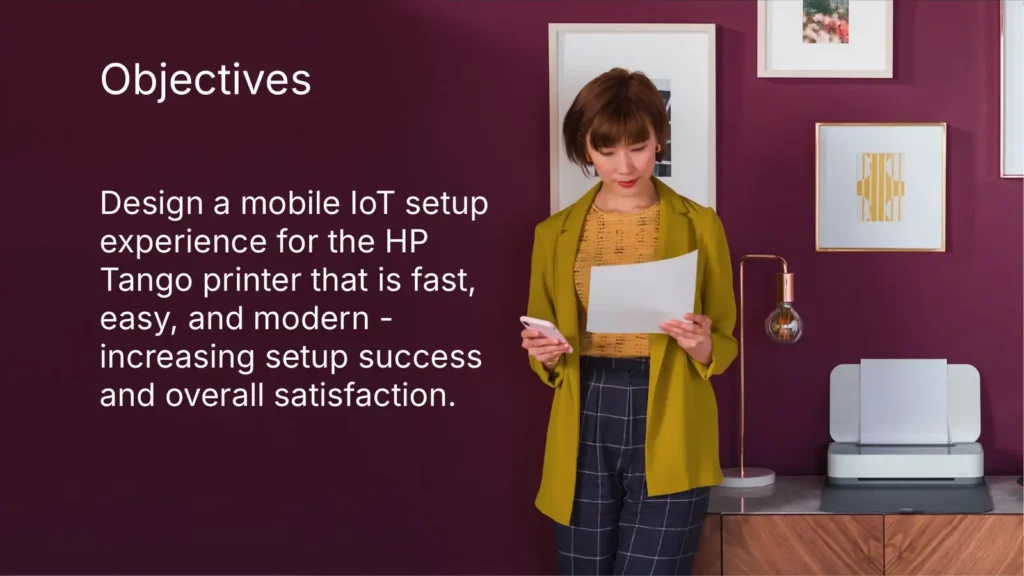
Design a mobile IoT setup experience for the HP Tango printer that is fast, easy, and modern - increasing setup success and overall satisfaction.
Users
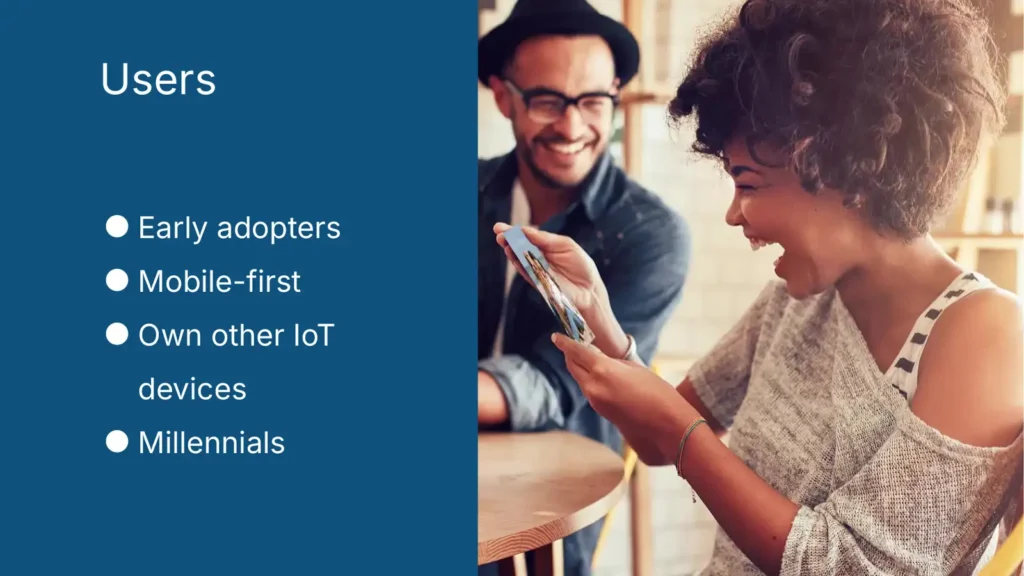
Early adopters
Mobile-first
Own other IoT devices
Millennials
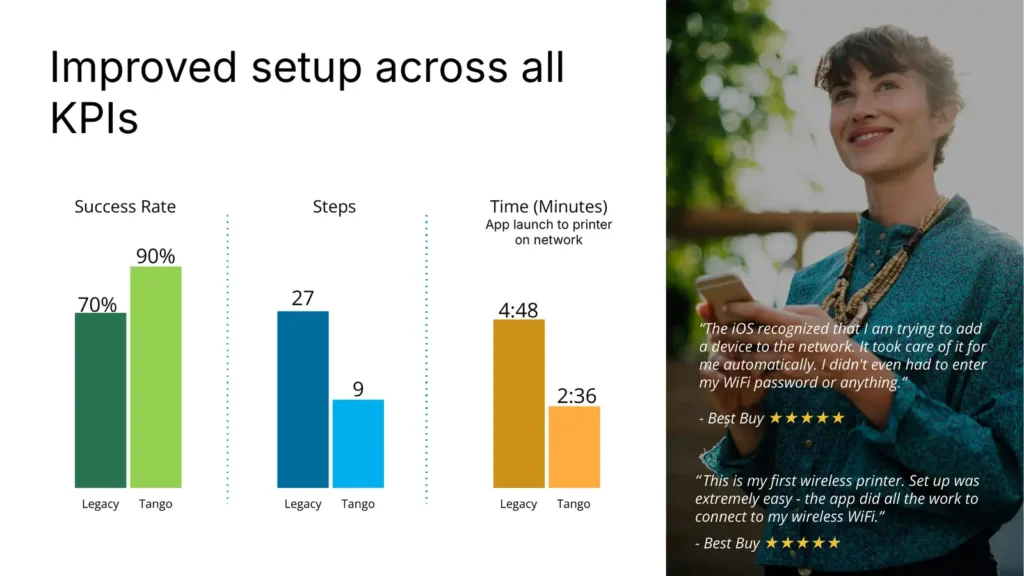
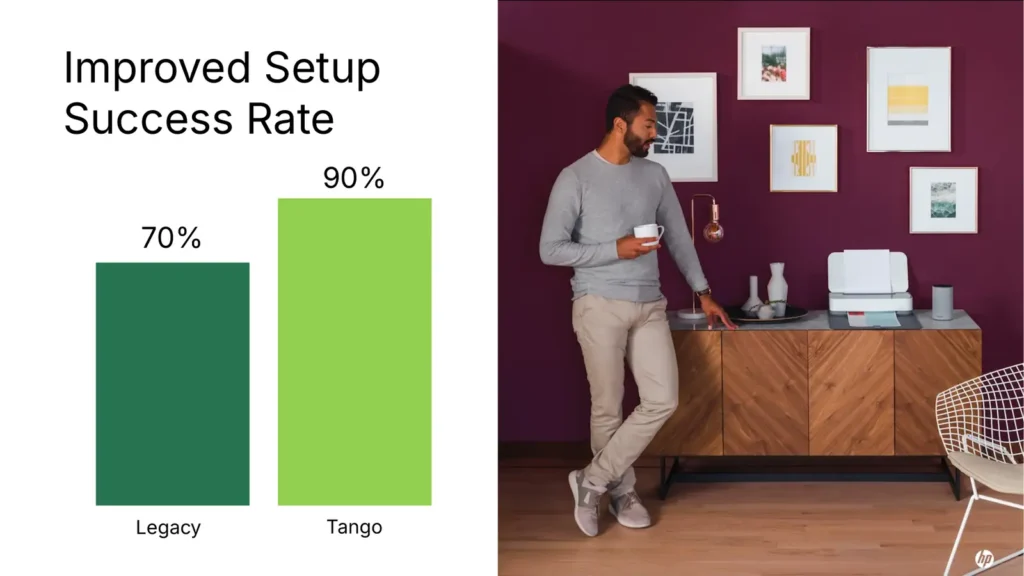
Improved setup across all KPIs
App launch to printer on network
“The iOS recognized that I am trying to add a device to the network. It took care of it for me automatically. I didn't even had to enter my WiFi password or anything.”
“This is my first wireless printer. Set up was extremely easy - the app did all the work to connect to my wireless WiFi.”
Research
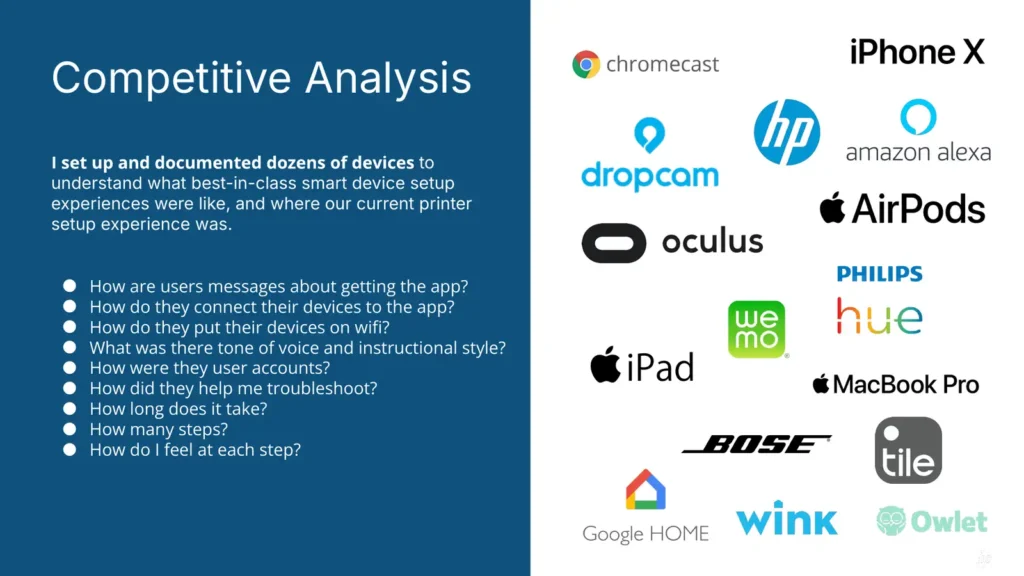
Competitive Analysis
I set up and documented dozens of devices to understand what best-in-class smart device setup experiences were like, and where our current printer setup experience was.
How are users messages about getting the app?
How do they connect their devices to the app?
How do they put their devices on wifi?
What was there tone of voice and instructional style?
How were they user accounts?
How did they help me troubleshoot?
How long does it take?
How many steps?
How do I feel at each step?
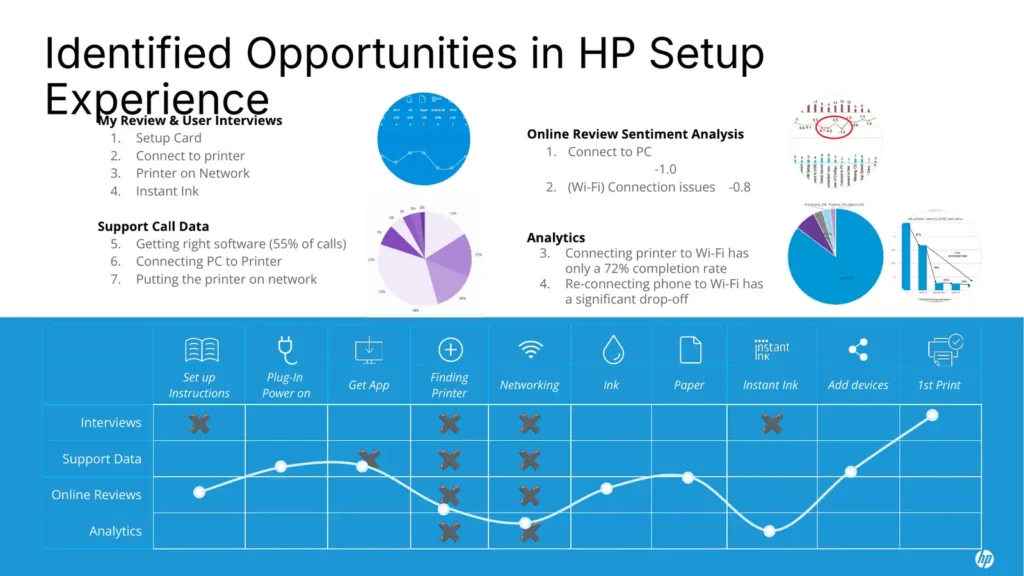
Identified Opportunities in HP Setup Experience
My Review & User Interviews
Getting right software (55% of calls)
Putting the printer on network
Connecting printer to Wi-Fi has only a 72% completion rate
Re-connecting phone to Wi-Fi has a significant drop-off
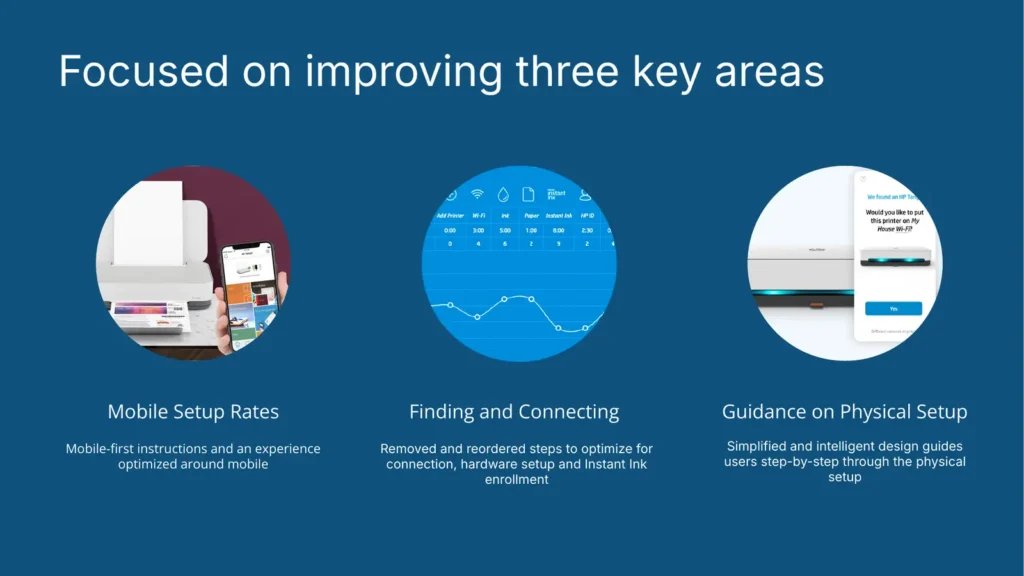
Focused on improving three key areas
Mobile-first instructions and an experience optimized around mobile
Removed and reordered steps to optimize for connection, hardware setup and Instant Ink enrollment
Simplified and intelligent design guides users step-by-step through the physical setup
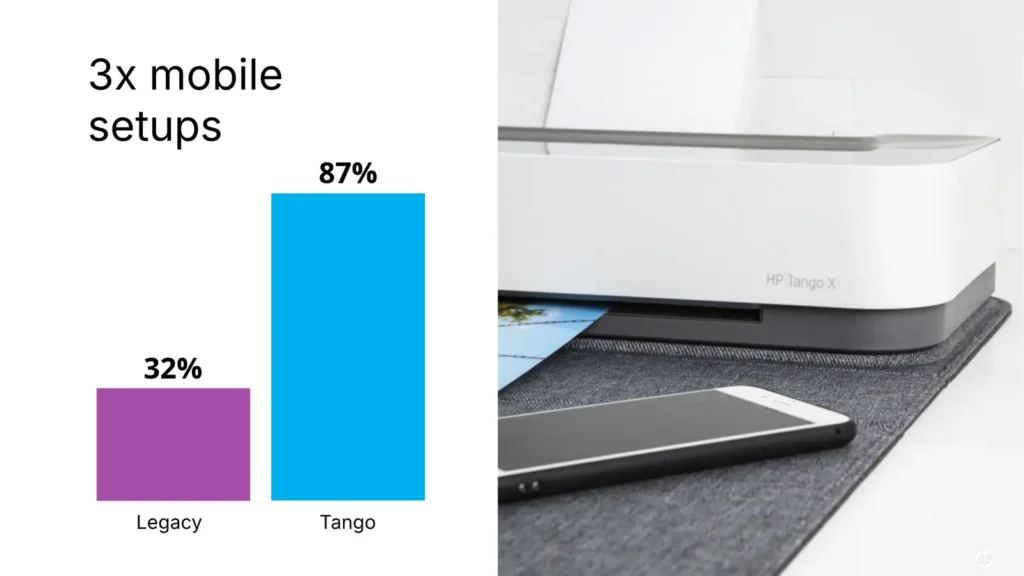
Mobile Setup Rates
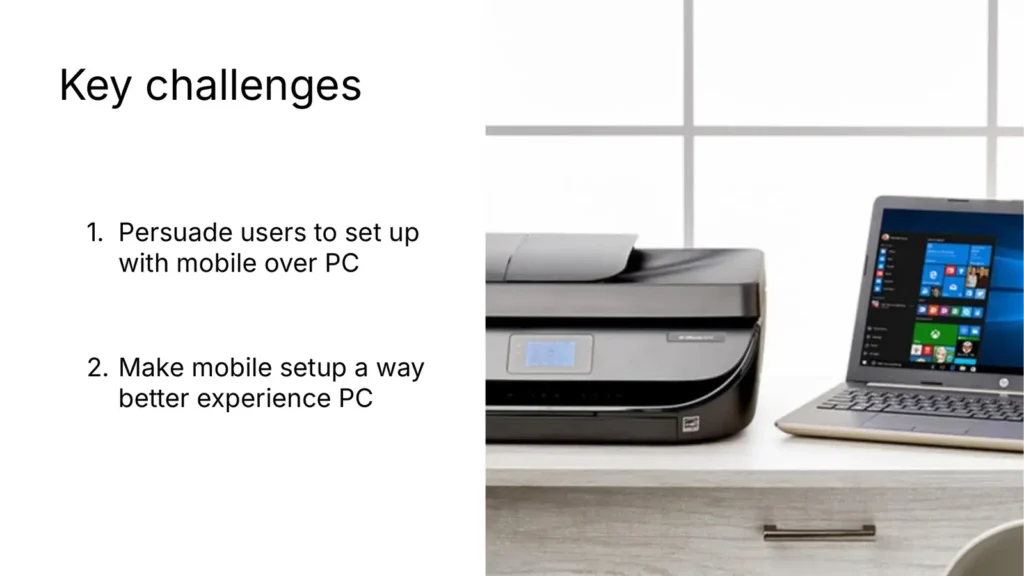
Key challenges
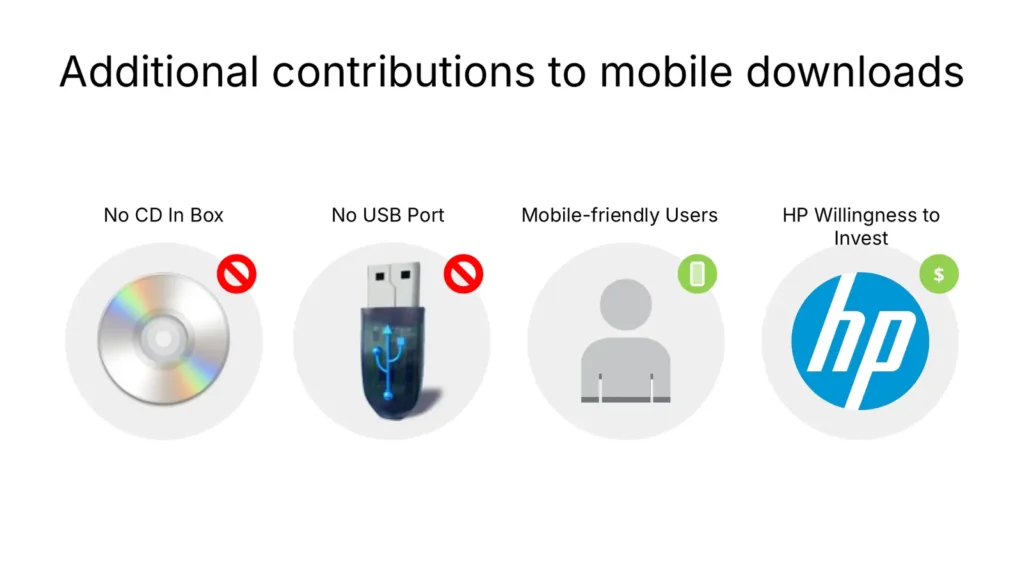
Persuade users to set up with mobile over PC
Make mobile setup a way better experience PC
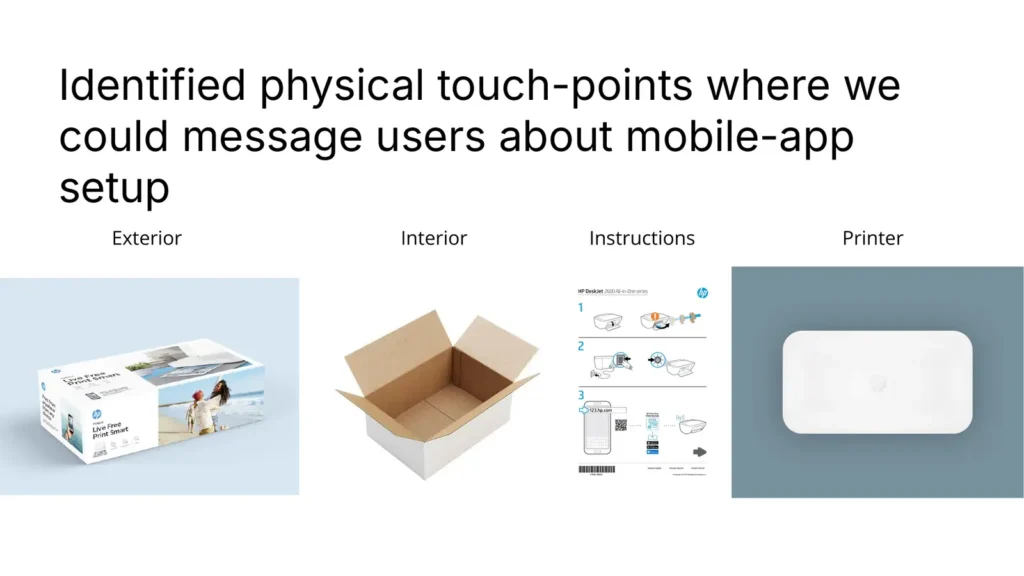
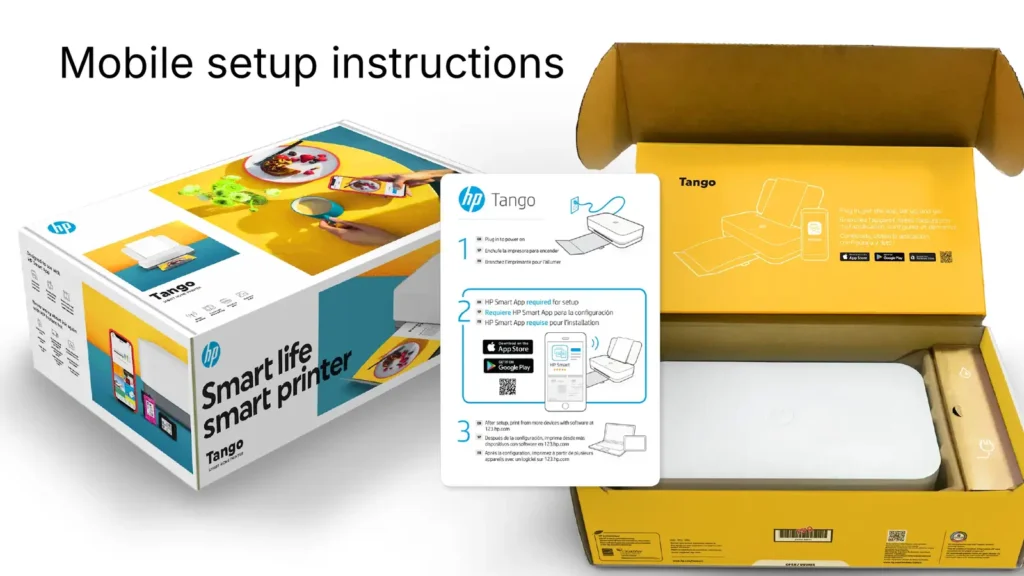
Identified physical touch-points where we could message users about mobile-app setup
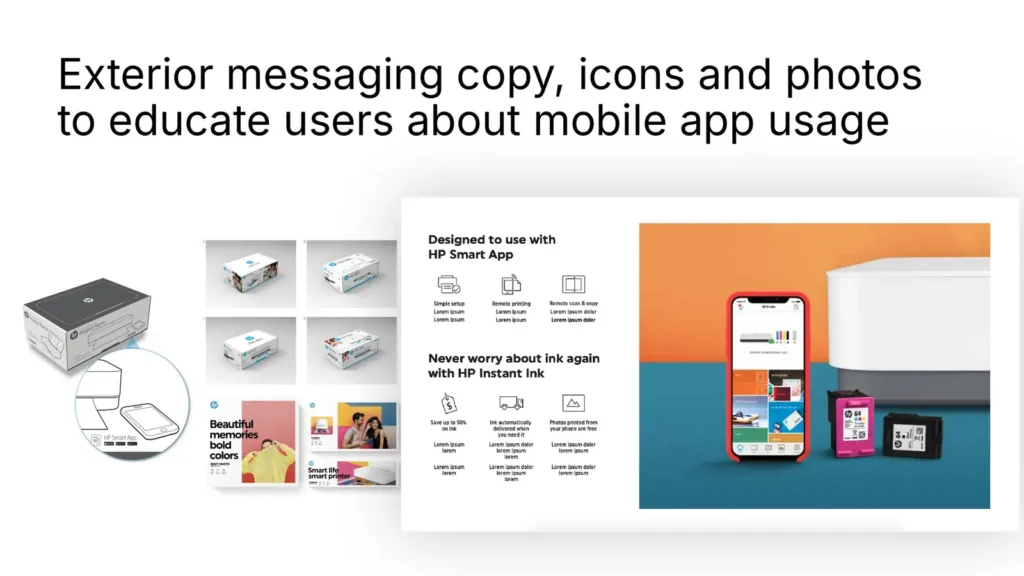
Exterior messaging copy, icons and photos to educate users about mobile app usage
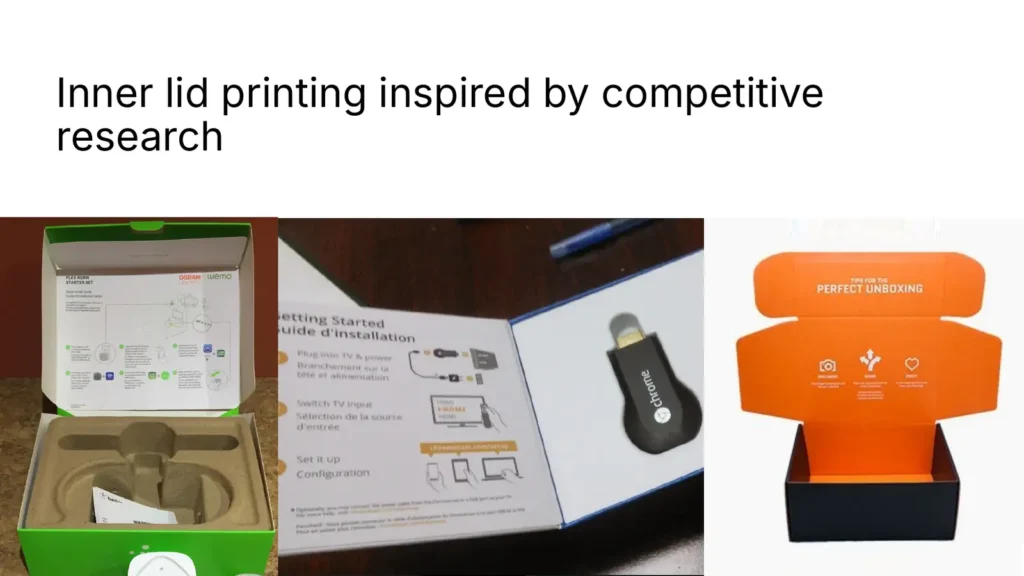
Inner lid printing inspired by competitive research
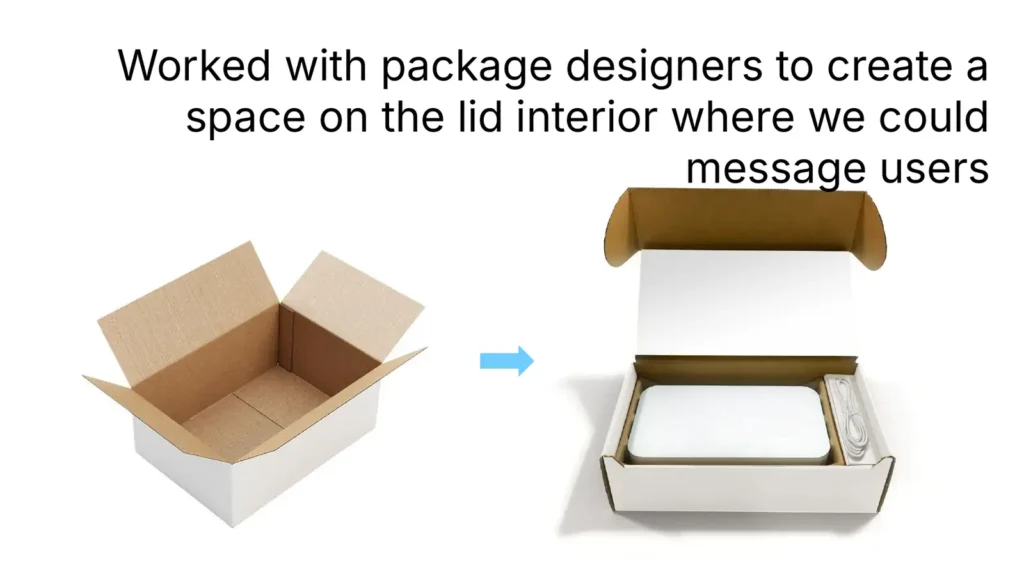
Worked with package designers to create a space on the lid interior where we could message users
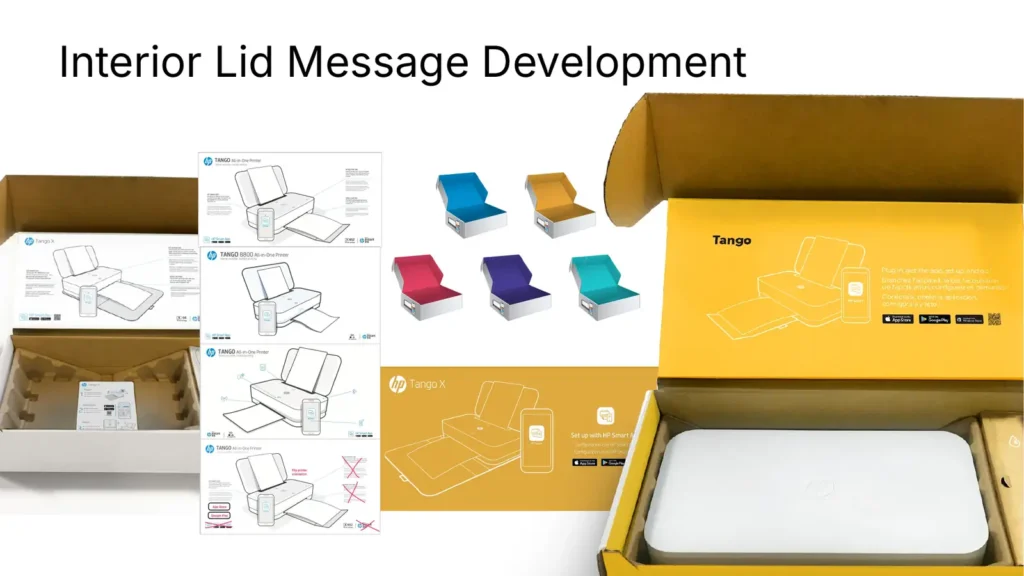
Interior Lid Message Development
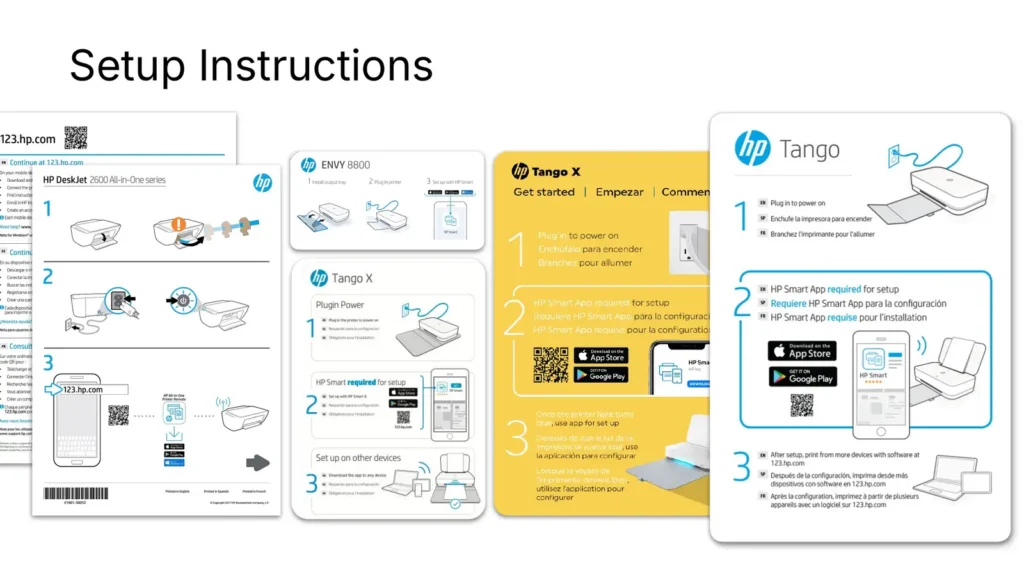
Setup Instructions
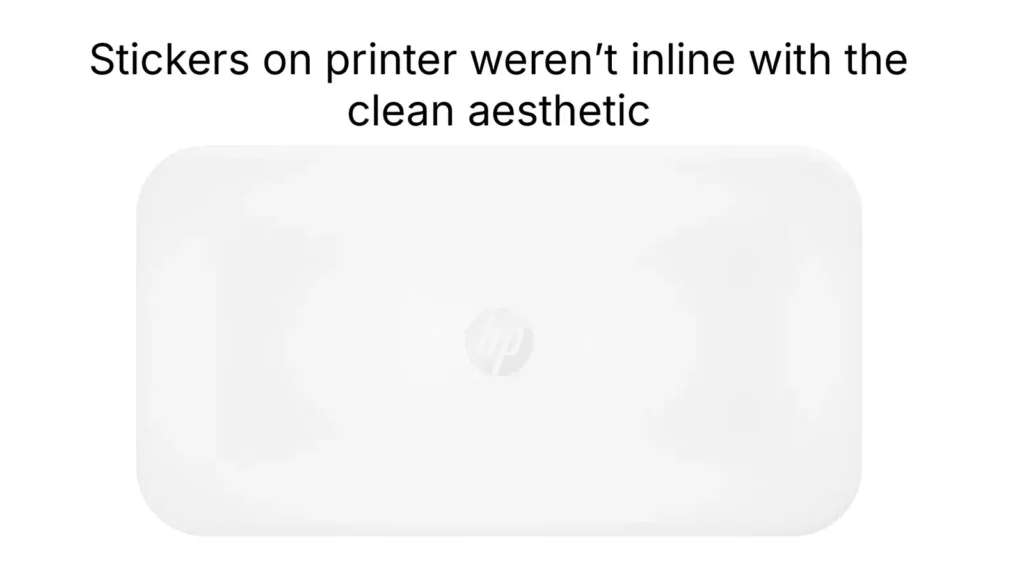
Stickers on printer weren’t inline with the clean aesthetic
Mobile setup instructions
Additional contributions to mobile downloads
3x mobile setups
Finding Printer and Networking

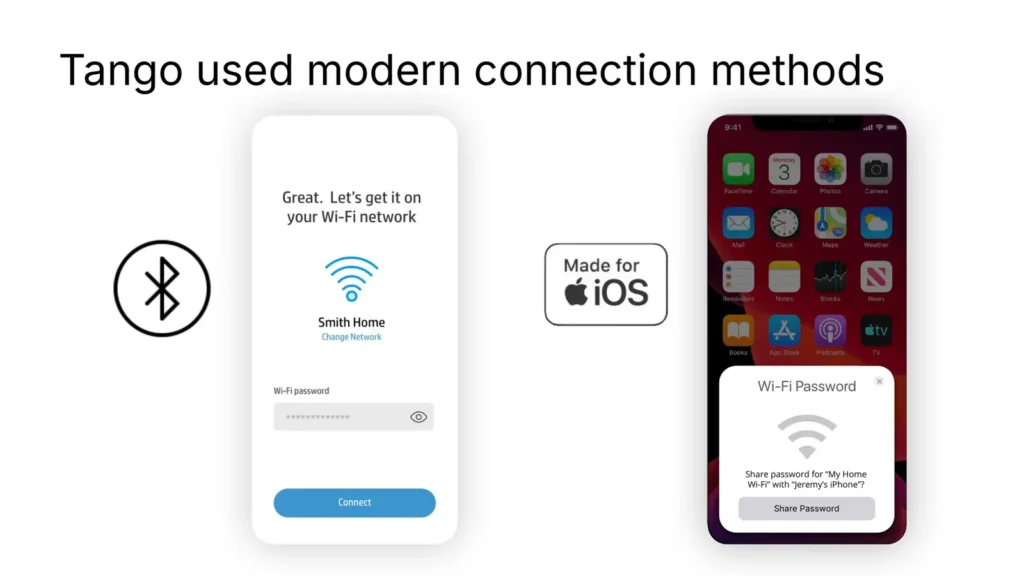
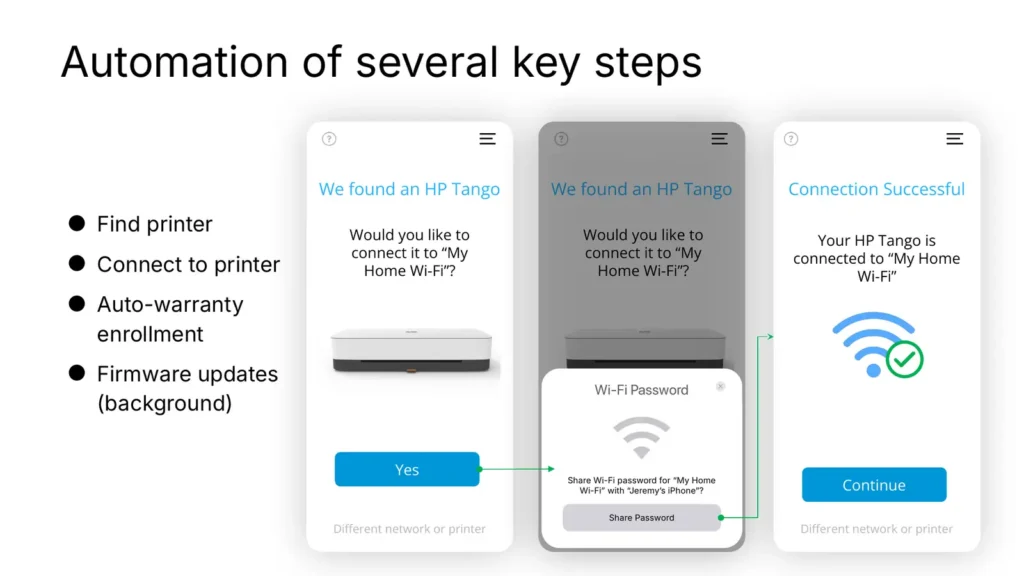
Tango used modern connection methods
Share password for “My Home Wi-Fi” with “Jeremy’s iPhone”?
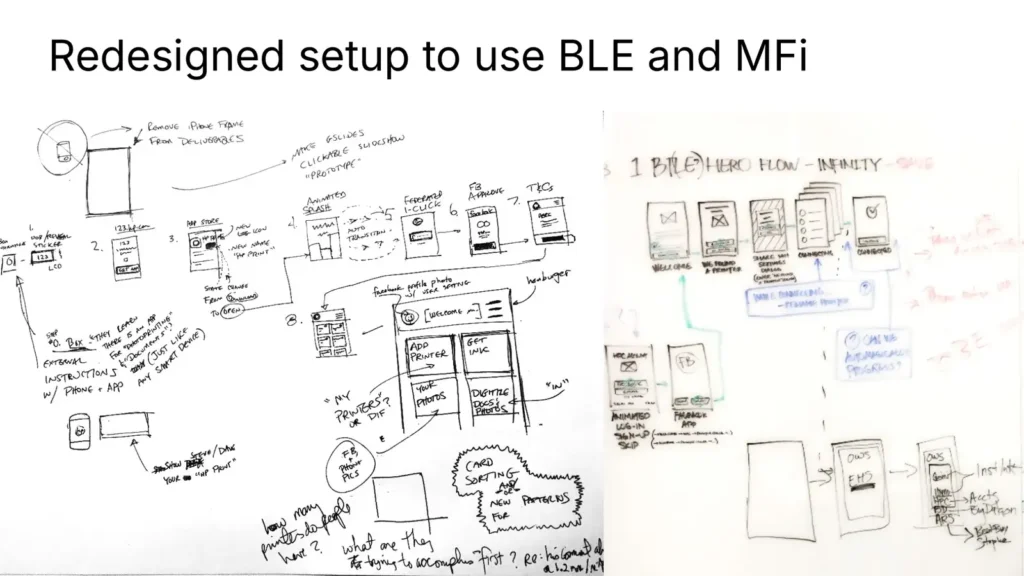
Redesigned setup to use BLE and MFi
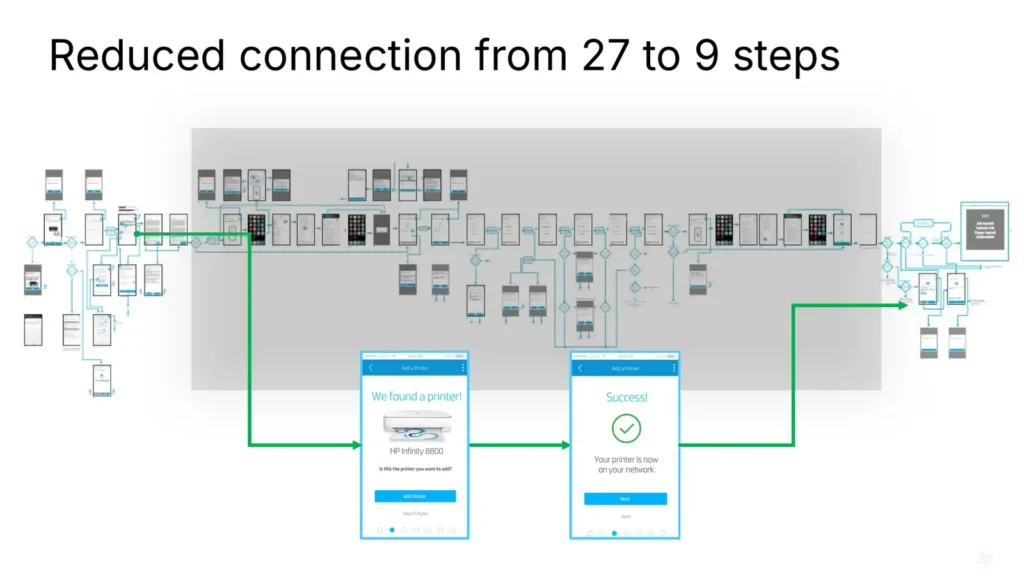
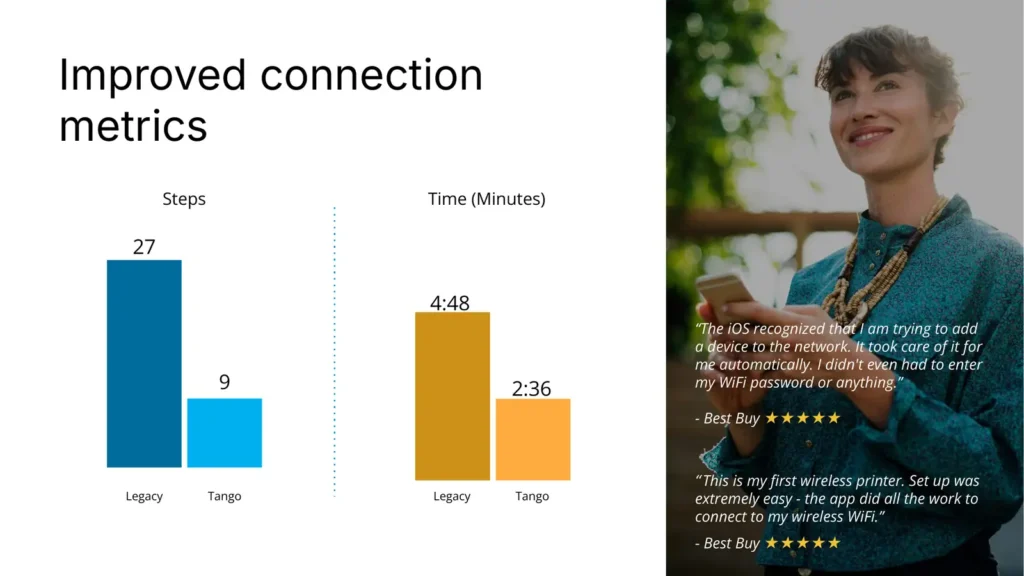
Reduced connection from 27 to 9 steps
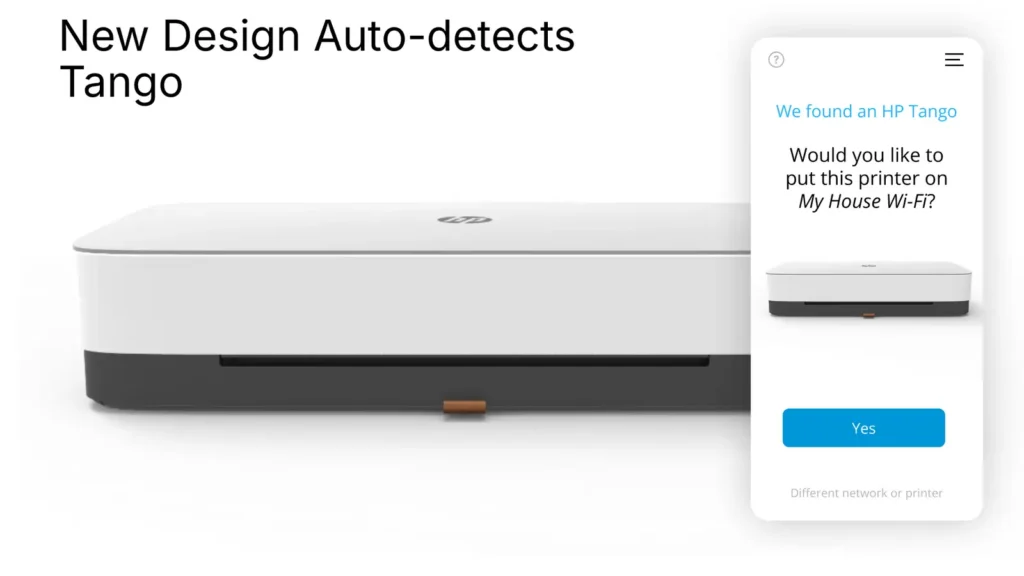
New Design Auto-detects Tango
We found an HP Tango
Would you like to put this printer on My House Wi-Fi?
Automation of several key steps
We found an HP Tango
We found an HP Tango
Find printer
Connect to printer
Auto-warranty enrollment
Firmware updates (background)
Would you like to connect it to “My Home Wi-Fi”?
Would you like to connect it to “My Home Wi-Fi”?
Your HP Tango is connected to “My Home Wi-Fi”
Share Wi-Fi password for “My Home Wi-Fi” with “Jeremy’s iPhone”?
Improved connection metrics
“The iOS recognized that I am trying to add a device to the network. It took care of it for me automatically. I didn't even had to enter my WiFi password or anything.”
“This is my first wireless printer. Set up was extremely easy - the app did all the work to connect to my wireless WiFi.”
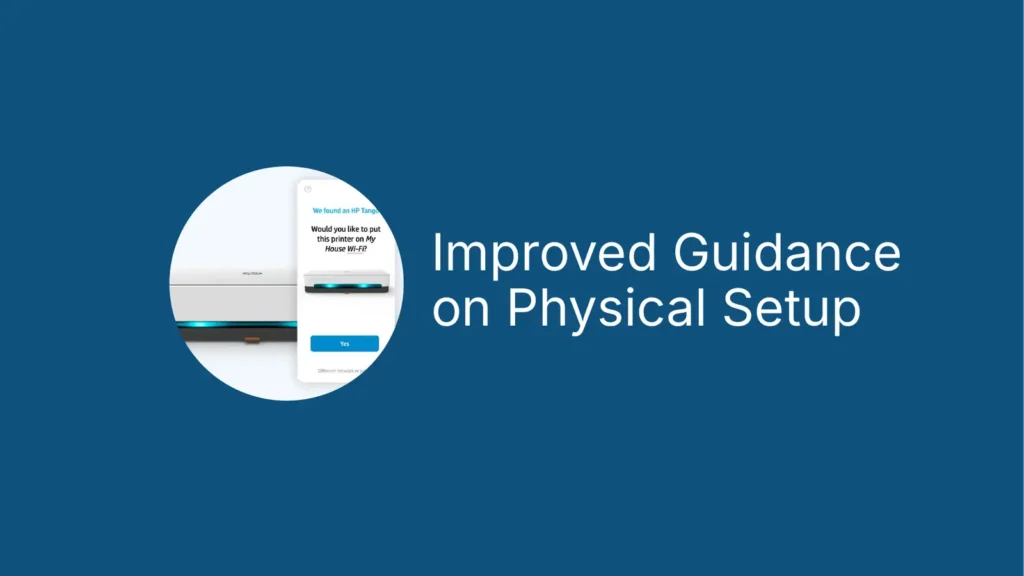
Improved Guidance on Physical Setup
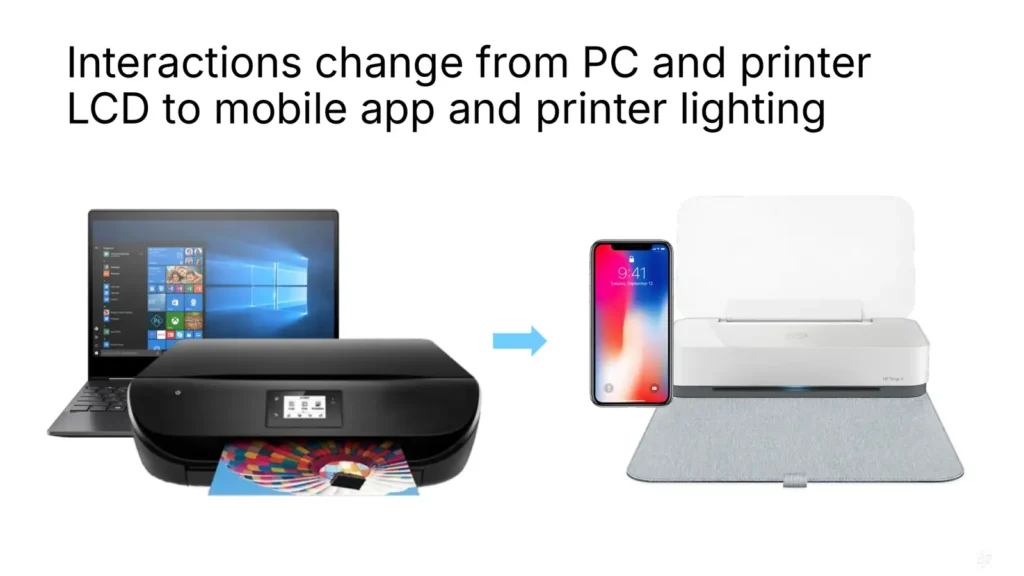
“Edge lighting” to replace the printer LCD
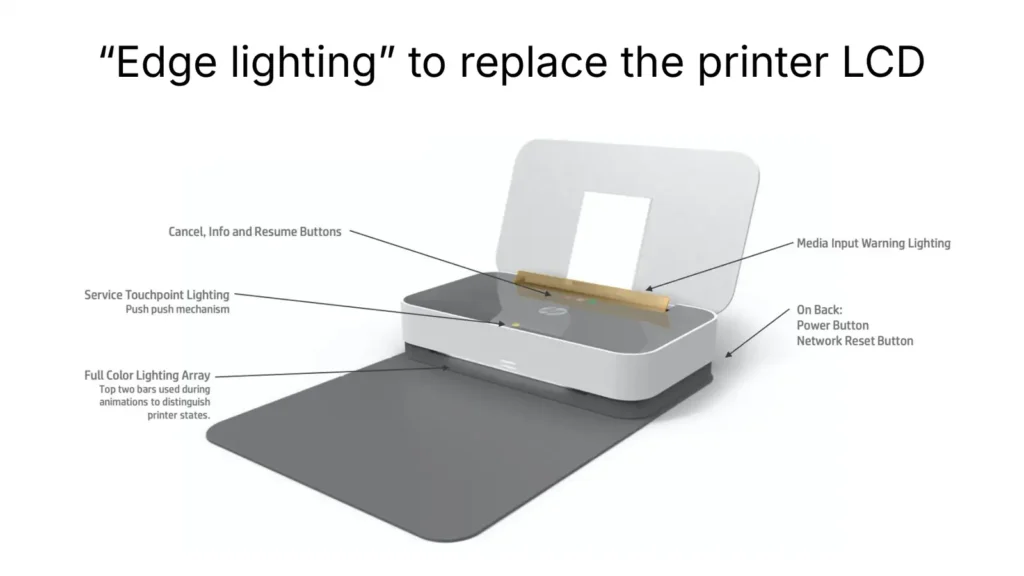
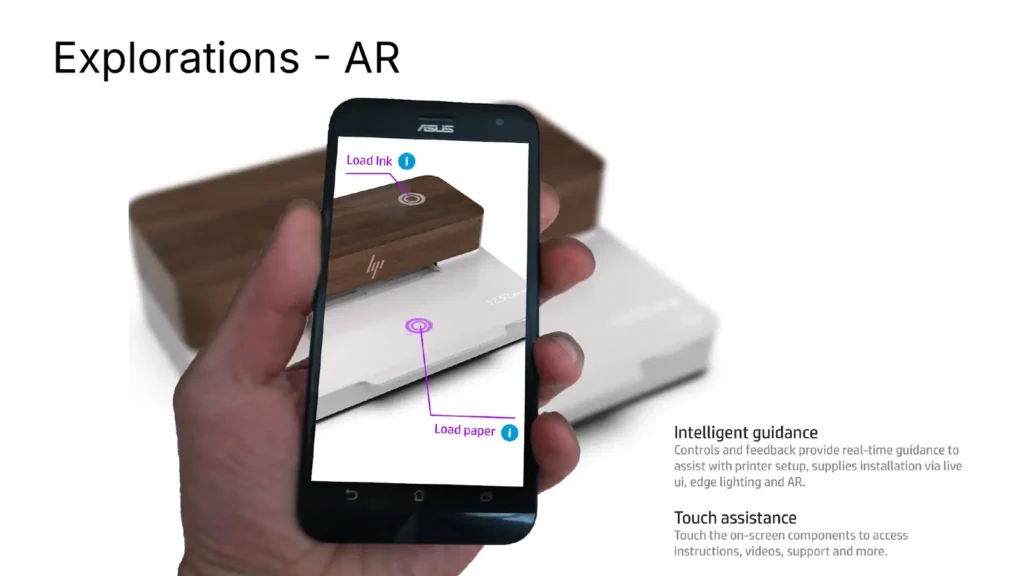
Interactions change from PC and printer LCD to mobile app and printer lighting
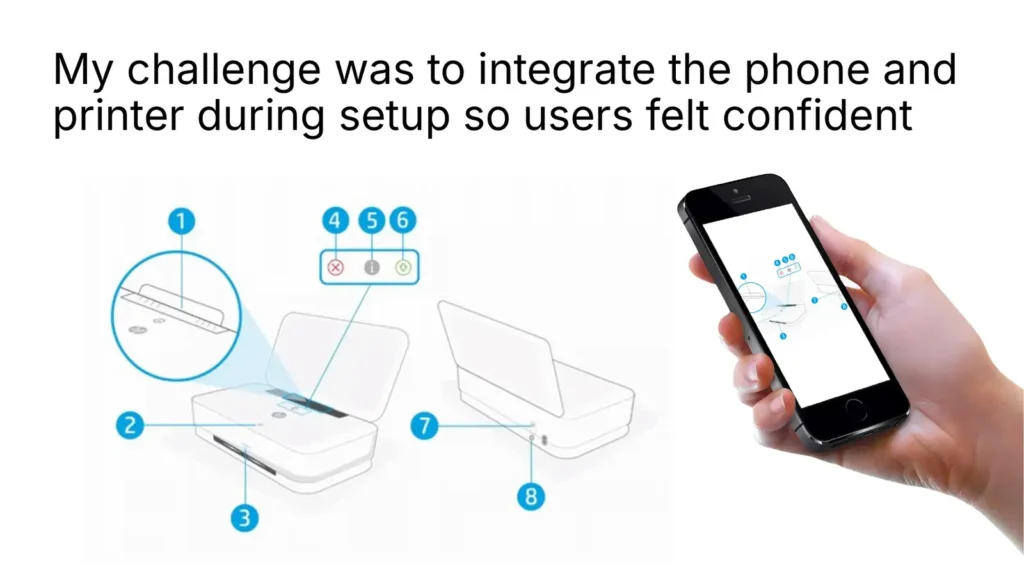
My challenge was to integrate the phone and printer during setup so users felt confident
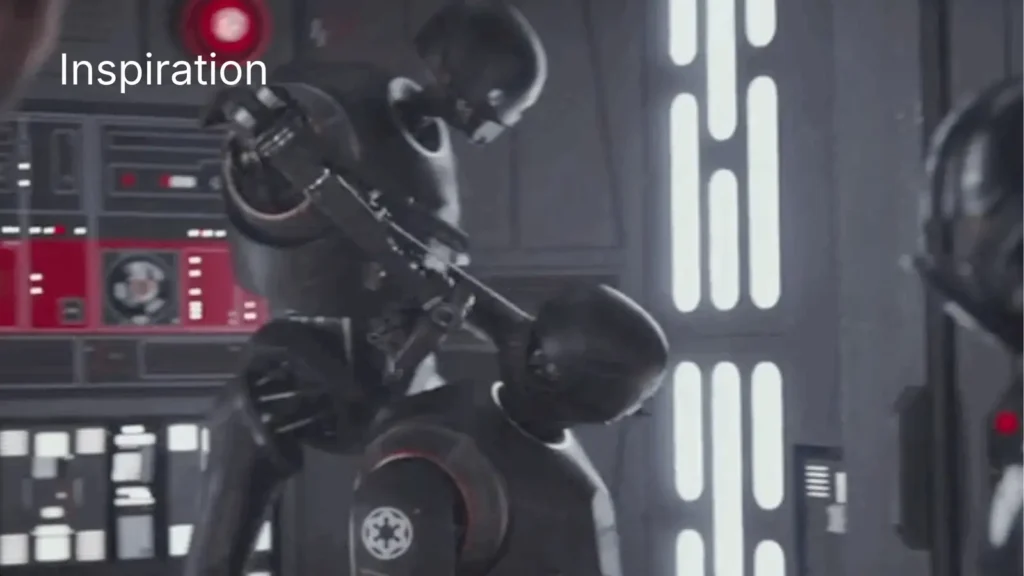
Inspiration
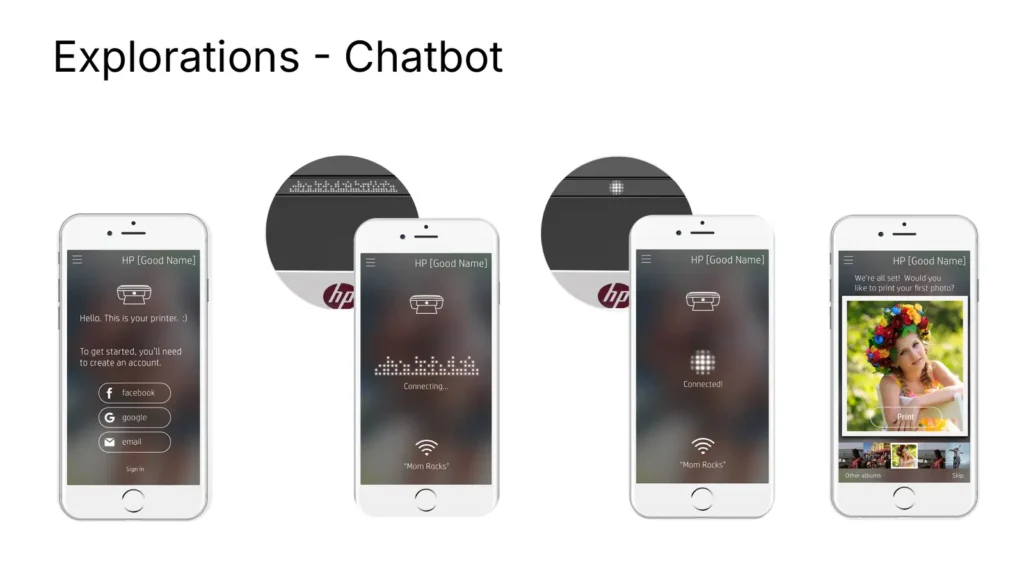
Explorations - Chatbot
Explorations - AR
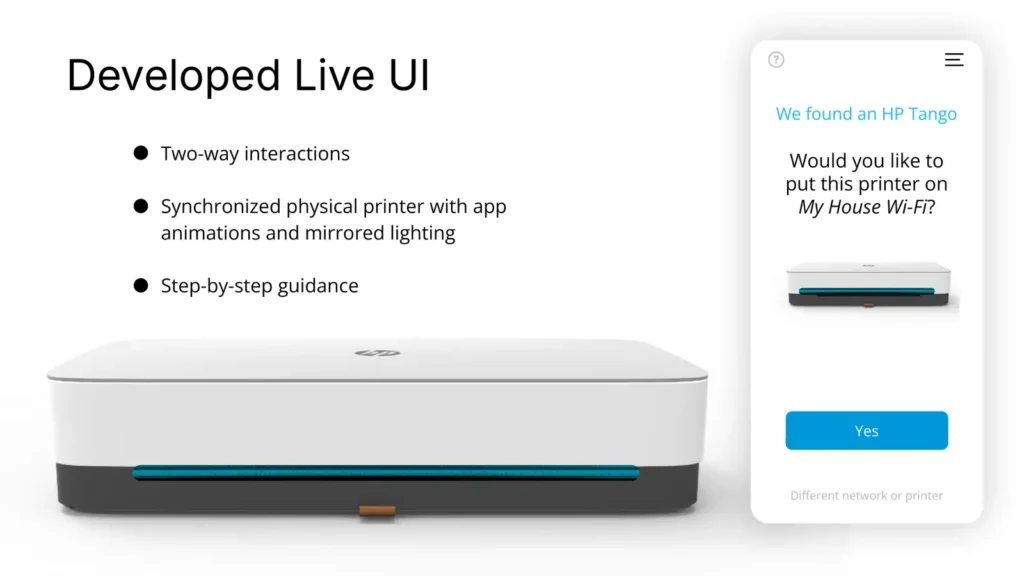
Developed Live UI
We found an HP Tango
Two-way interactions
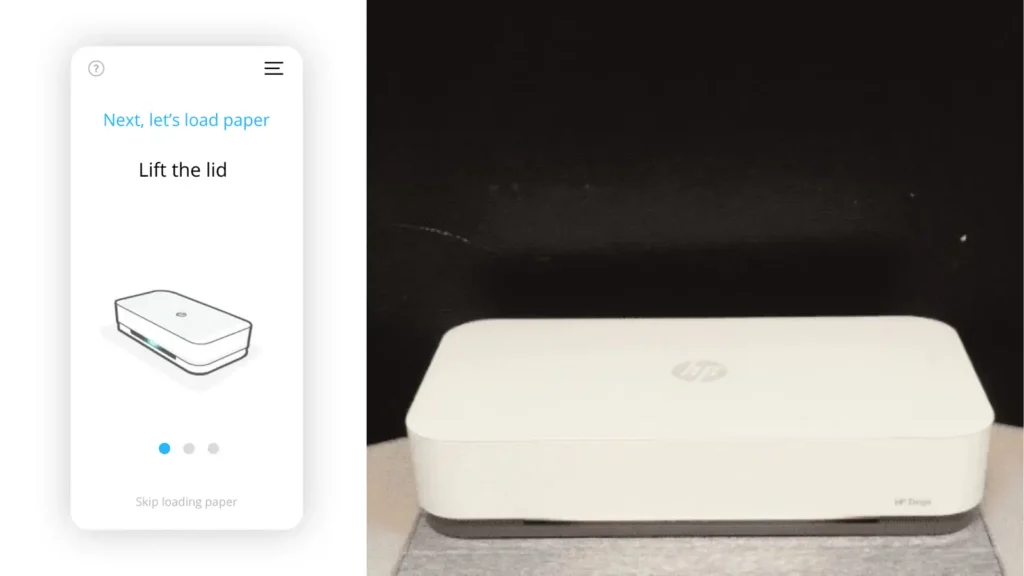
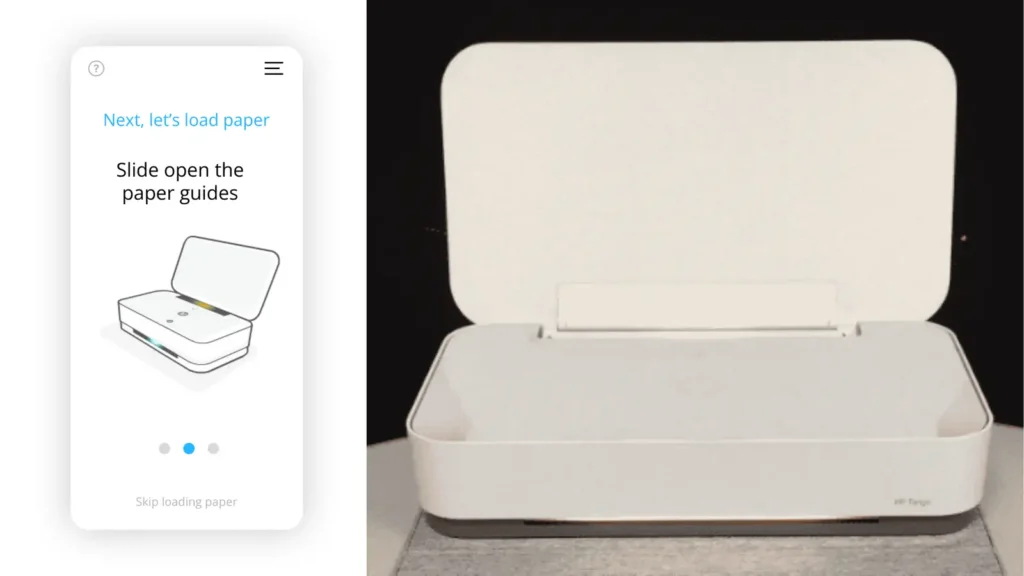
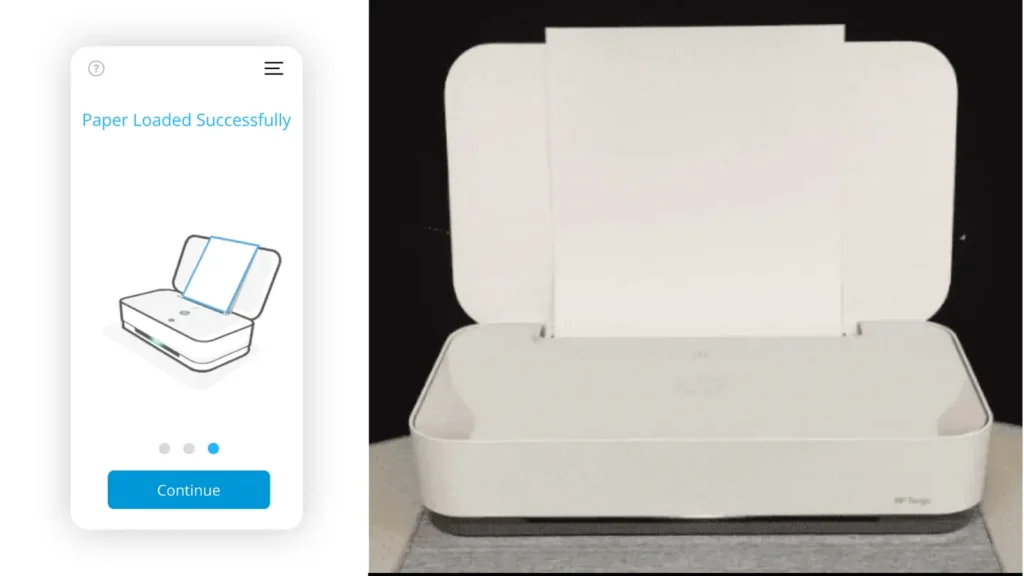
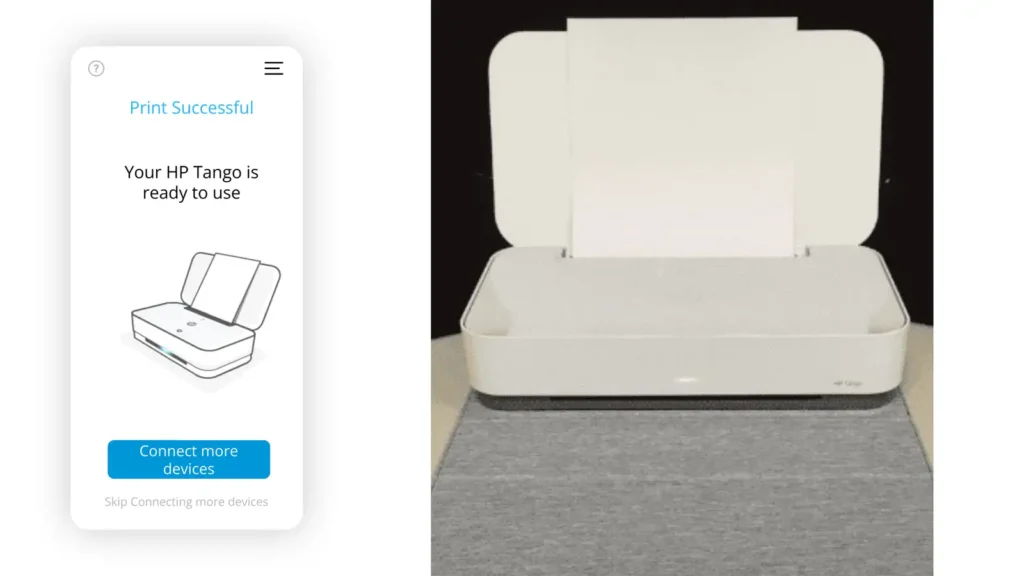
Synchronized physical printer with app animations and mirrored lighting
Step-by-step guidance
Would you like to put this printer on My House Wi-Fi?
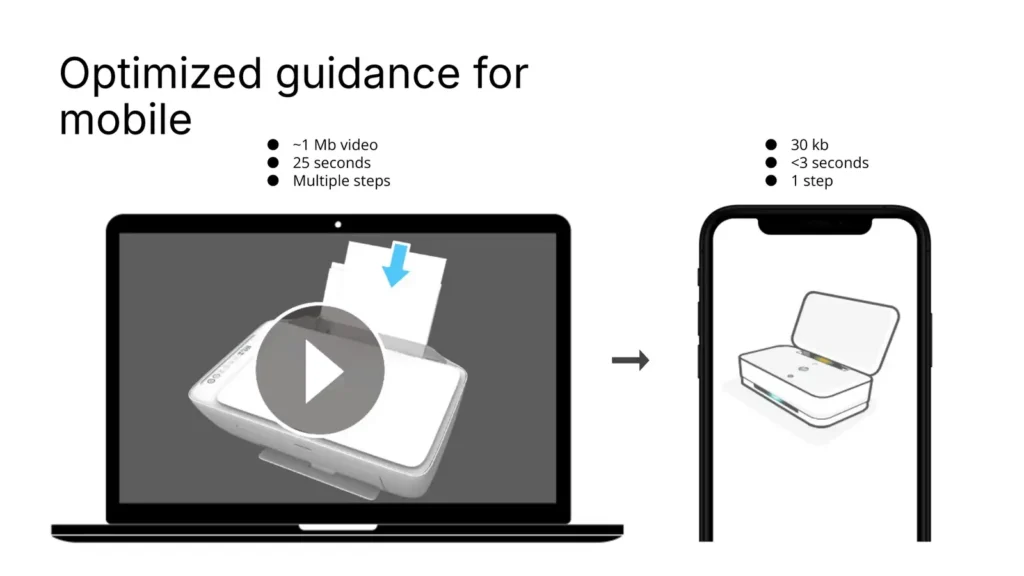
Optimized guidance for mobile
~1 Mb video
25 seconds
Multiple steps
30 kb
<3 seconds
1 step
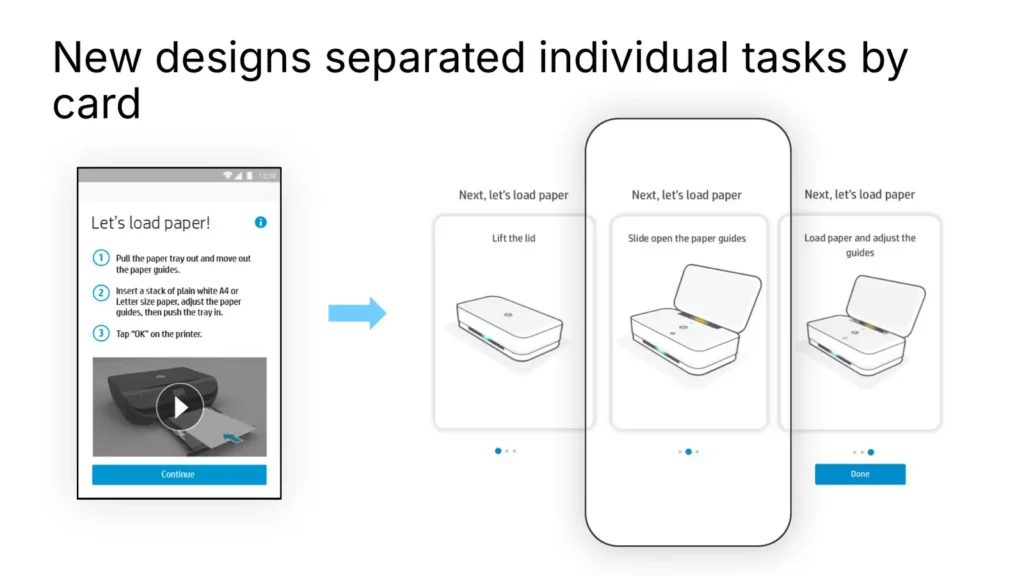
Old screens looked like this...
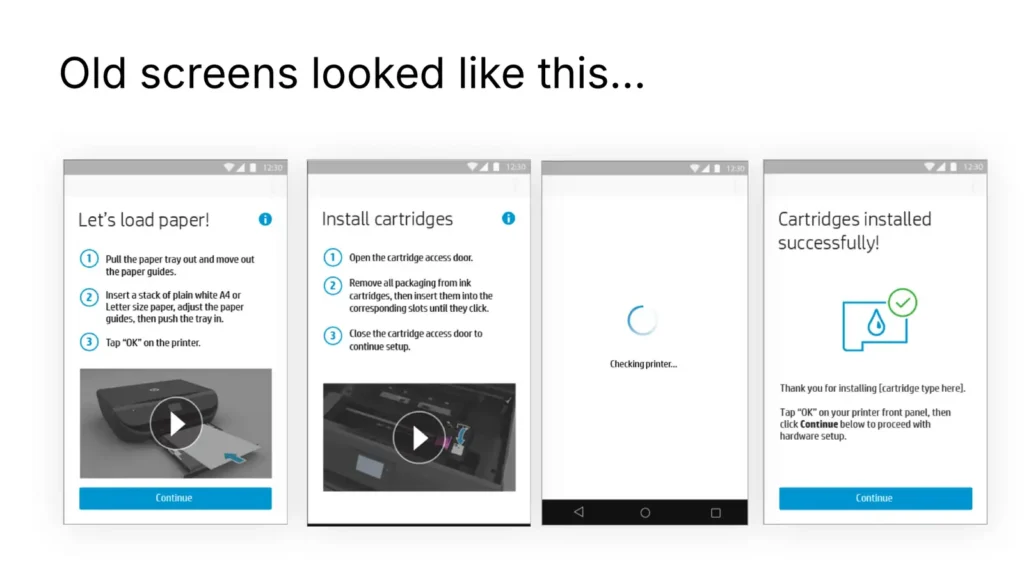
New designs separated individual tasks by card
Slide open the paper guides
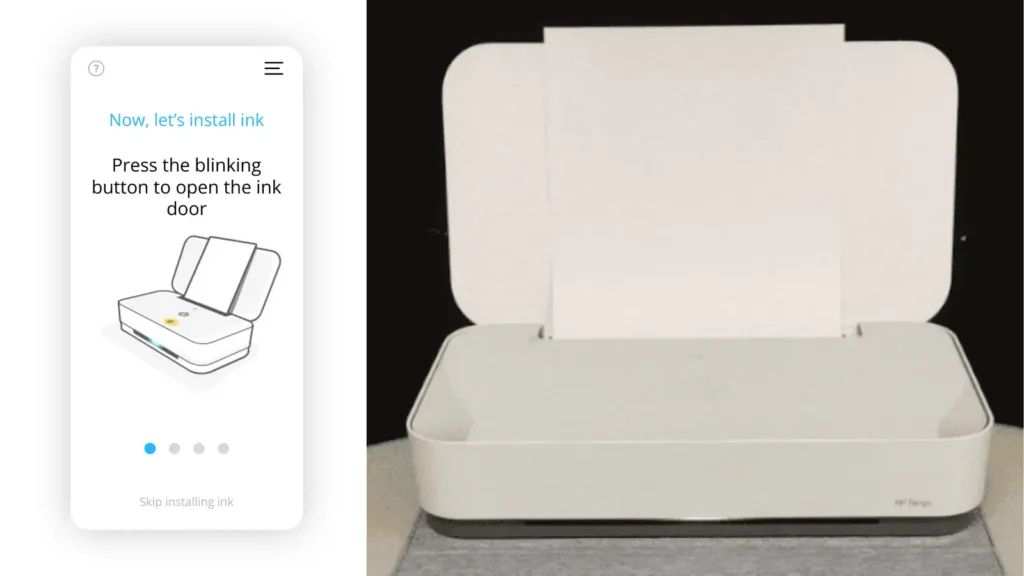
Press the blinking button to open the ink door
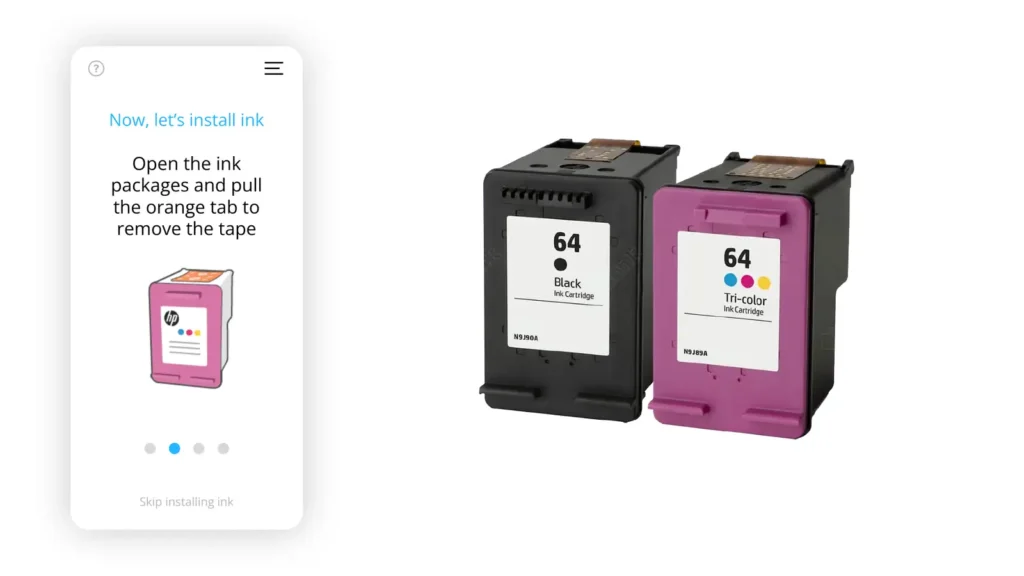
Open the ink packages and pull the orange tab to remove the tape
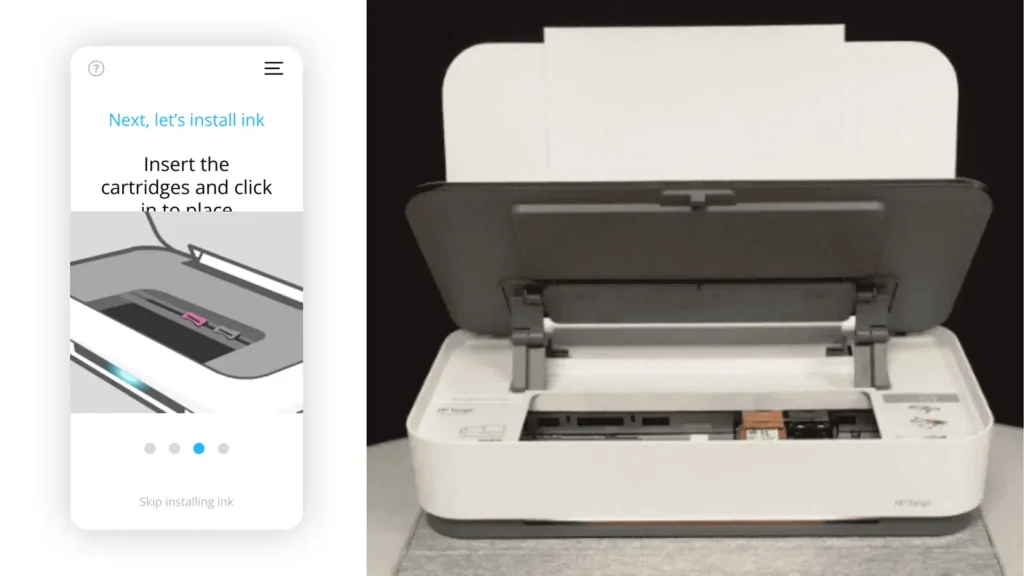
Insert the cartridges and click in to place
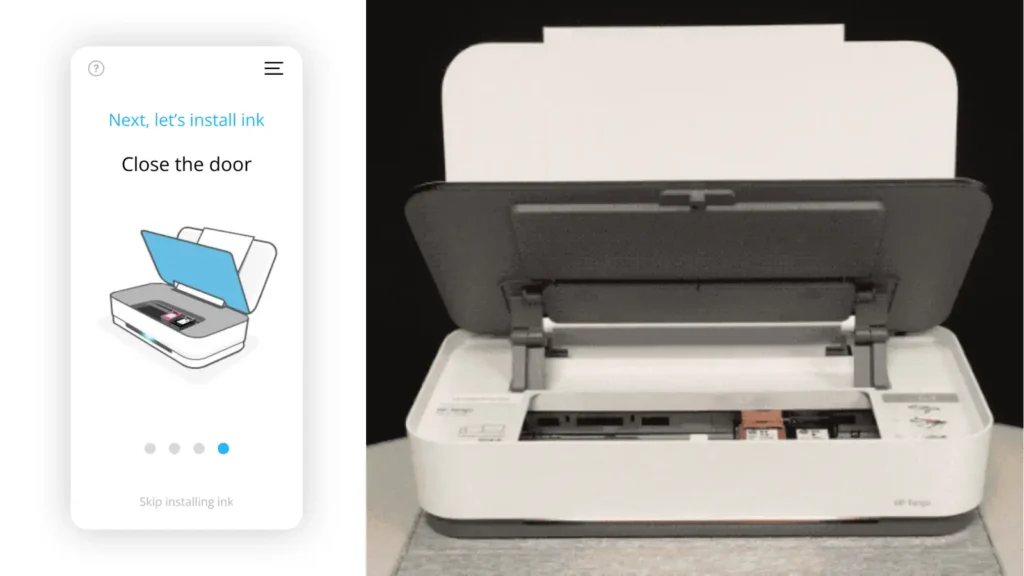
Would you like to print a test page?
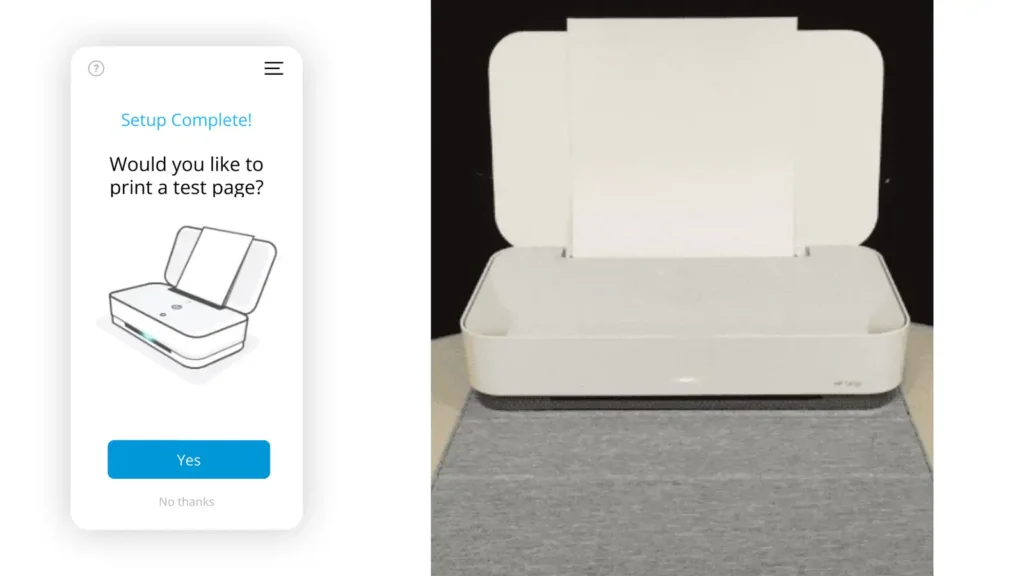
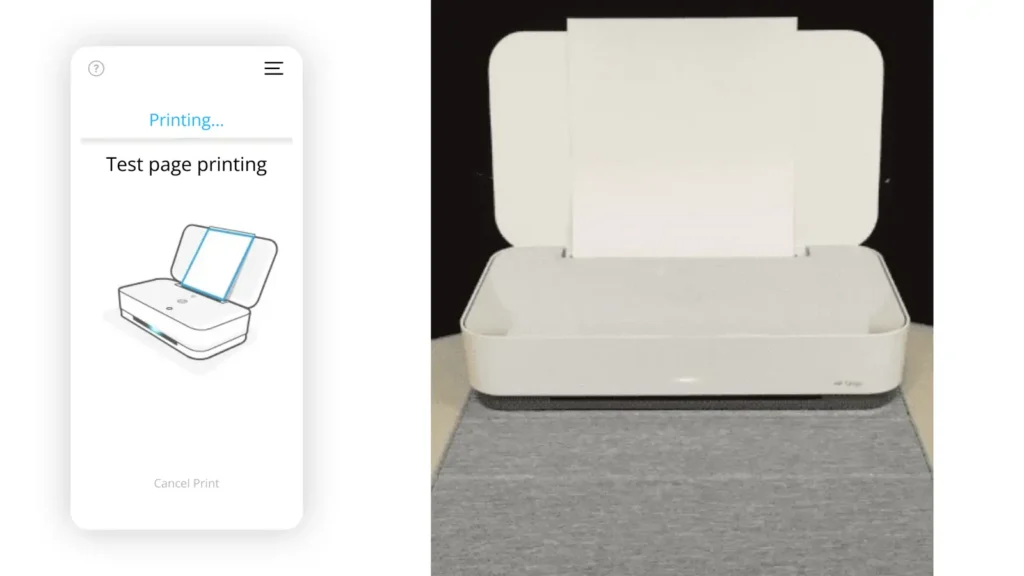
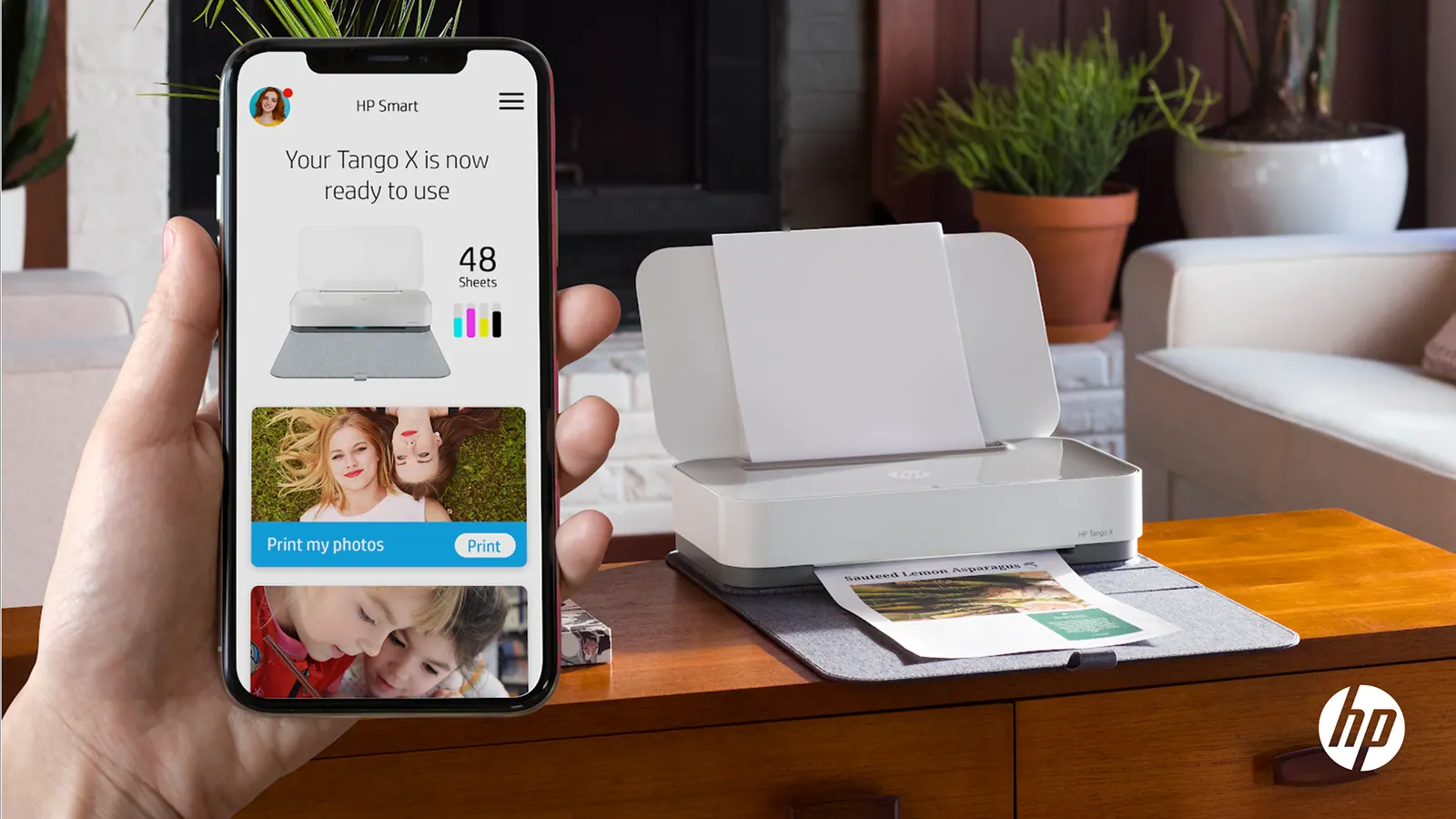
Your HP Tango is ready to use
User Testing
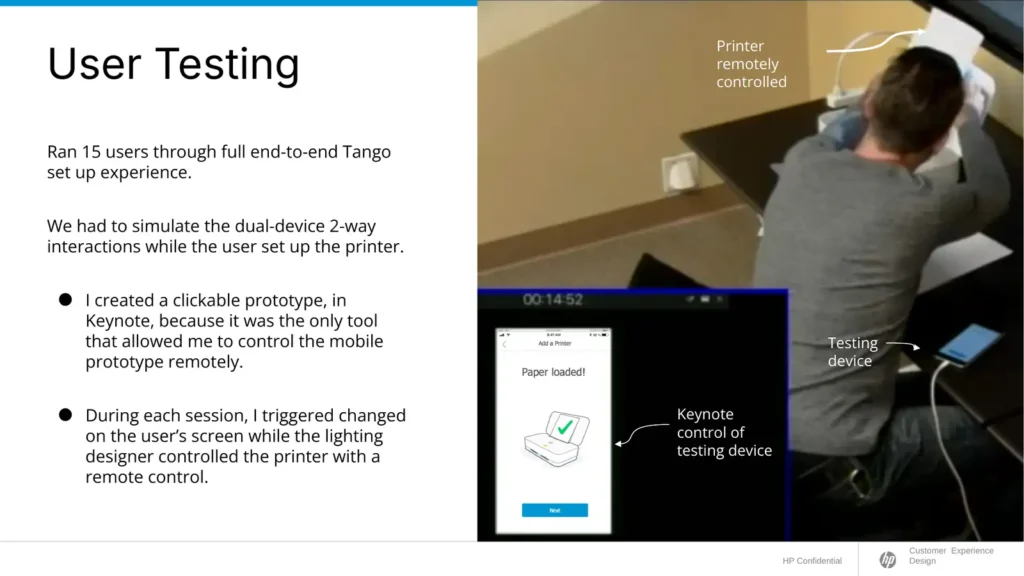
Ran 15 users through full end-to-end Tango set up experience.
We had to simulate the dual-device 2-way interactions while the user set up the printer.
I created a clickable prototype, in Keynote, because it was the only tool that allowed me to control the mobile prototype remotely.
During each session, I triggered changed on the user’s screen while the lighting designer controlled the printer with a remote control.
Keynote control of testing device
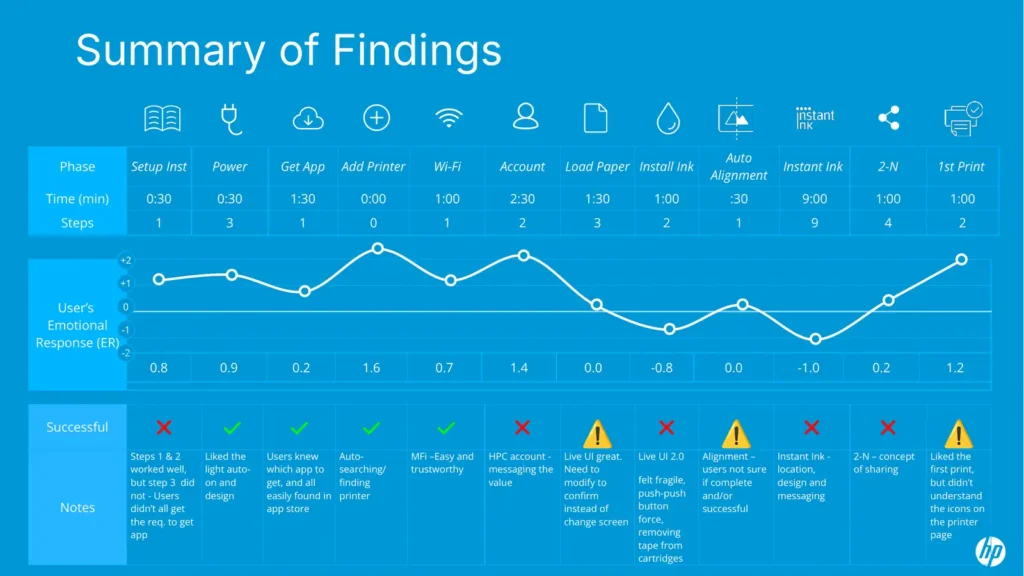
Summary of Findings
Improved Setup Success Rate
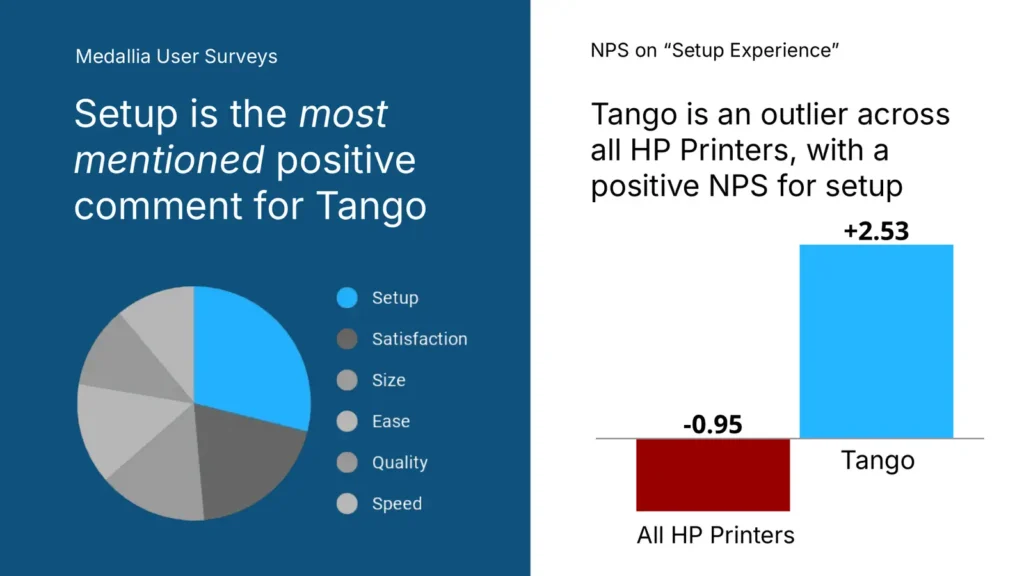
User reviews
Setup is the most mentioned positive comment for Tango
Tango is an outlier across all HP Printers, with a positive NPS for setup
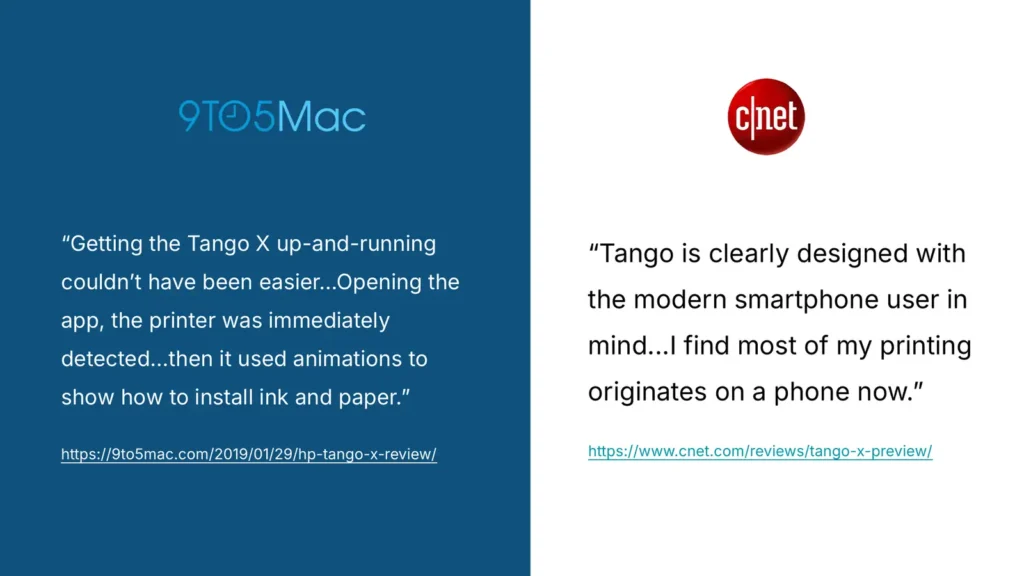
“Tango is clearly designed with the modern smartphone user in mind...I find most of my printing originates on a phone now.”
“Getting the Tango X up-and-running couldn’t have been easier…Opening the app, the printer was immediately detected...then it used animations to show how to install ink and paper.”
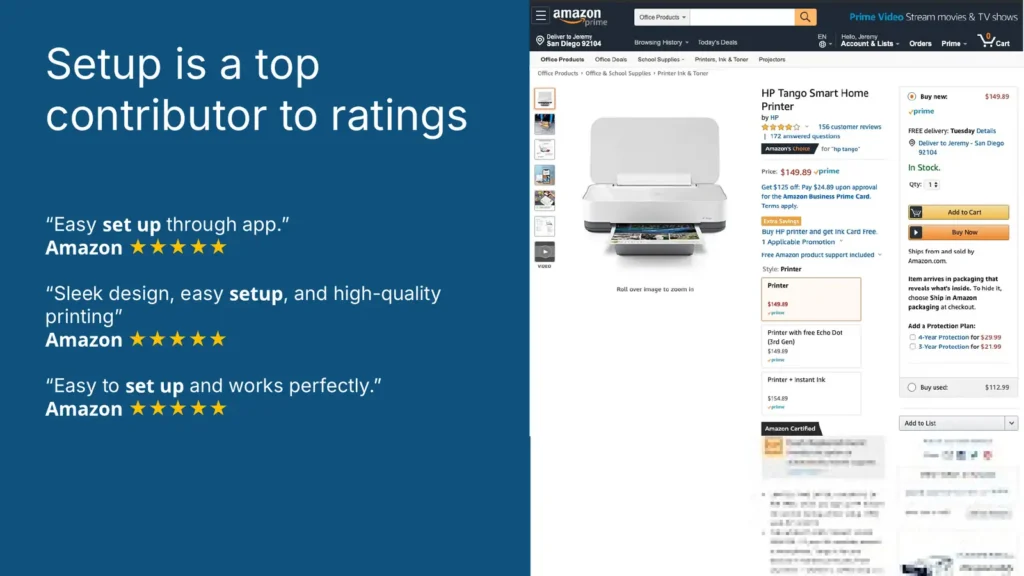
Setup is a top contributor to ratings
“Easy set up through app.”
“Sleek design, easy setup, and high-quality printing”
“Easy to set up and works perfectly.”
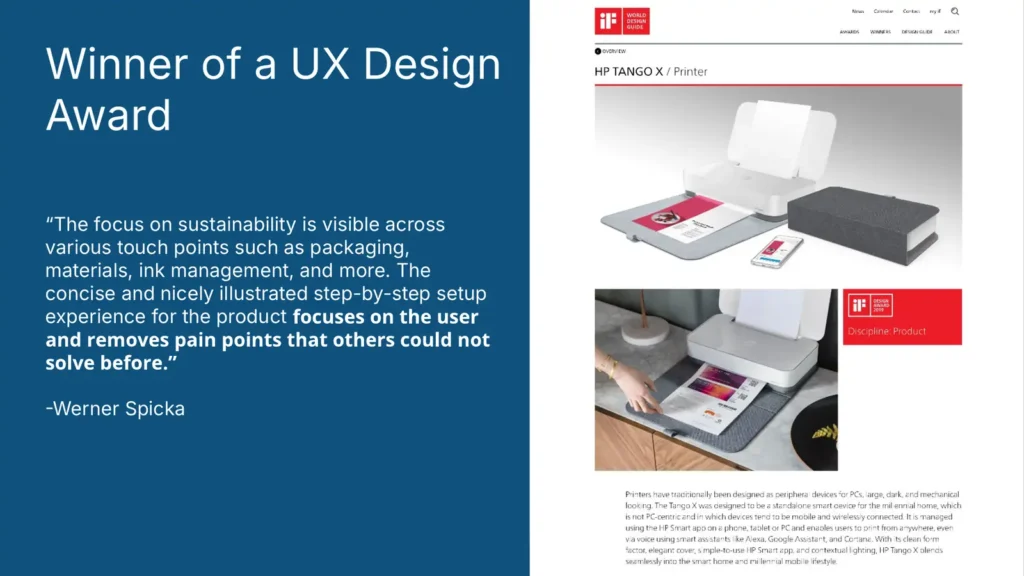
Winner of a UX Design Award
“The focus on sustainability is visible across various touch points such as packaging, materials, ink management, and more. The concise and nicely illustrated step-by-step setup experience for the product focuses on the user and removes pain points that others could not solve before.”